
I will be honest with you. My first RTL-SDR setup was a complete disaster.
I bought a small RTL-SDR dongle from the internet, plugged it into my Windows laptop, and nothing happened. No sound, no signals, just a blank screen. I thought my dongle was broken. I spent almost 3 hours watching random YouTube videos, downloading wrong drivers, and getting more and more frustrated.
Then a friend told me one simple thing: “You are missing the Zadig driver.” I installed it, and within 2 minutes, I was listening to my local FM station. Then air traffic control. Then a ham radio operator from another country.
If you are feeling stuck right now, don’t worry. You are not alone. Almost every beginner faces the same problem.
In this guide, I will show you exactly how to setup RTL-SDR on Windows in just 10 minutes. No technical background needed. Just follow the steps one by one, and by the end of this article, you will be listening to real radio signals.
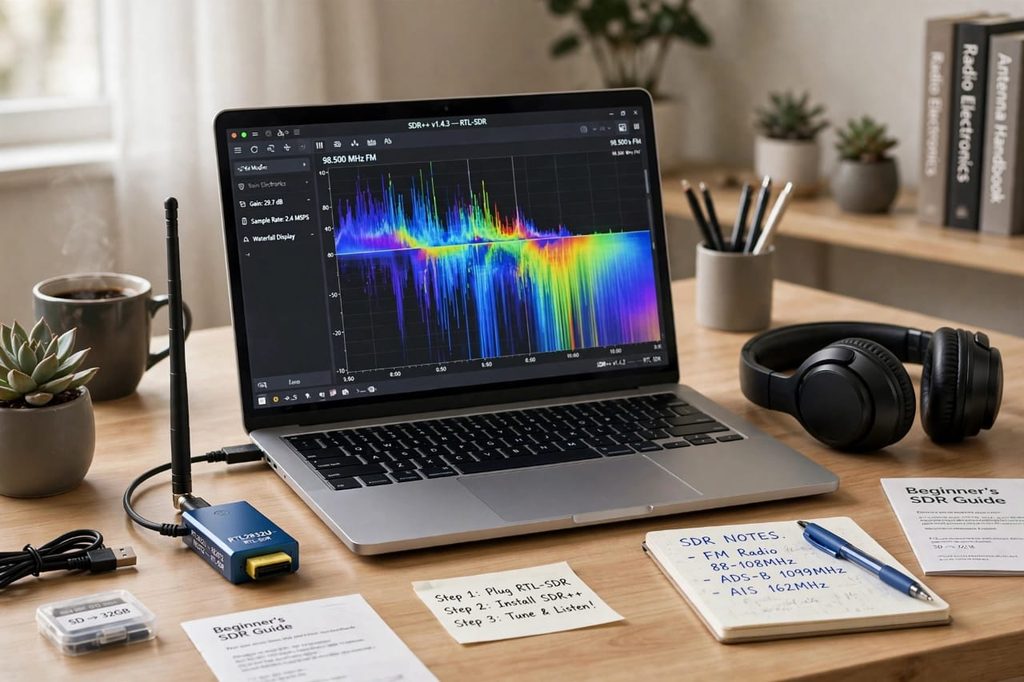
What is RTL-SDR?
RTL-SDR is a small and very cheap USB device that turns your computer into a powerful radio receiver.
Originally, these USB sticks were made to watch TV on a computer. But some smart people discovered that the chip inside them could also receive almost any radio signal, from 500 kHz to 1.7 GHz.
That means with a $35 device, you can listen to:
- FM Radio and AM Radio
- Air Traffic Control and Airport Tower
- Police, Fire, and Emergency Services (where legal)
- Ham Radio Operators
- Weather Satellites and Ships
- Walkie-Talkies and Taxi Drivers
You don’t need a big antenna on your roof. You don’t need an expensive radio. You just need this small dongle, a laptop, and the right software.
What Do You Need Before You Start?
Before we start the setup, make sure you have these 4 things ready. It will save you a lot of time.
1. RTL-SDR Dongle
The best dongle for beginners is the RTL-SDR Blog V4. It costs around $30 to $40. It comes with a small antenna and a USB cable.
Please do not buy the cheapest $10 blue dongle. Those often overheat, have bad reception, and stop working after a few weeks. I made that mistake in the beginning, and I regret it.
2. A Windows 10 or Windows 11 Computer
This guide is for Windows. RTL-SDR works on Windows 10 and Windows 11 perfectly. You need at least 4GB RAM and 500MB free space. Even an old laptop will work fine.
3. A Good USB Port
Always plug your RTL-SDR directly into your laptop’s USB port. Do not use a cheap USB hub. And if you have a USB 3.0 port (blue color), use that one. It gives more stable power.
4. Internet Connection
You will need internet for 5 minutes to download the driver and the software. After that, you can use RTL-SDR completely offline.
How to Setup RTL-SDR on Windows – Step By Step
Now let’s start the real setup. I have divided it into 6 simple steps. Take your time and don’t skip any step.
Step 1: Unbox and Connect Your RTL-SDR
First, take your RTL-SDR dongle out of the box. You will get:
- The USB dongle
- A small telescopic antenna
- A small antenna base with a magnetic bottom
- A USB extension cable
Now, connect the antenna to the dongle. Screw it gently, don’t force it. Then plug the dongle into your Windows laptop.
Windows will try to install a driver automatically, but it will install the WRONG driver. Don’t worry, we will fix it in the next step.
Place your antenna near a window. This is very important. If your antenna is inside a drawer or behind your computer, you will get zero signals. I always put my antenna on the windowsill with the magnetic base.
Step 2: Install Zadig Driver (Most Important Step)
This is the step where 90% of beginners get stuck. If you skip this, your SDR software will never find your dongle.
Zadig is a small free tool that installs the correct driver for your RTL-SDR.
How to Install Zadig:
- Go to zadig.akeo.ie and download the latest Zadig
- Plug in your RTL-SDR dongle (keep it plugged in)
- Open Zadig, click on Options, then click on List All Devices
- In the drop-down menu, select Bulk-In, Interface (Interface 0)
- Make sure the driver shows WinUSB
- Click on Replace Driver or Install Driver
- Wait for 10 seconds. You will see Driver Installation Successful
That’s it. Your Windows now knows how to talk to your RTL-SDR.
Common Mistake: Many people select the wrong device in Zadig, like their mouse or keyboard. Be careful. You must select “Bulk-In, Interface (Interface 0)”. If you don’t see it, unplug your dongle and plug it again, then refresh the list.
Step 3: Download and Install SDR Software
Now you need software to see and hear the signals. There are many software options, but for beginners in 2026, I recommend SDR++.
Why SDR++? Because it is free, very lightweight, modern, and works perfectly on Windows. You can also read our detailed guide on the Best SDR Software for Beginners to compare all options.
How to Install SDR++:
- Go to the official SDR++ website
- Download the Windows version (SDRPlusPlus)
- Extract the ZIP file to a folder on your Desktop
- Double-click on sdrpp.exe to open it
You don’t need to install it like normal software. Just open the .exe file and it will run.
If you are using Windows 11 and you see a SmartScreen warning, click on More Info, then Run Anyway. It is safe.
Step 4: Select Your RTL-SDR in SDR++
Now we will connect the software to your hardware.
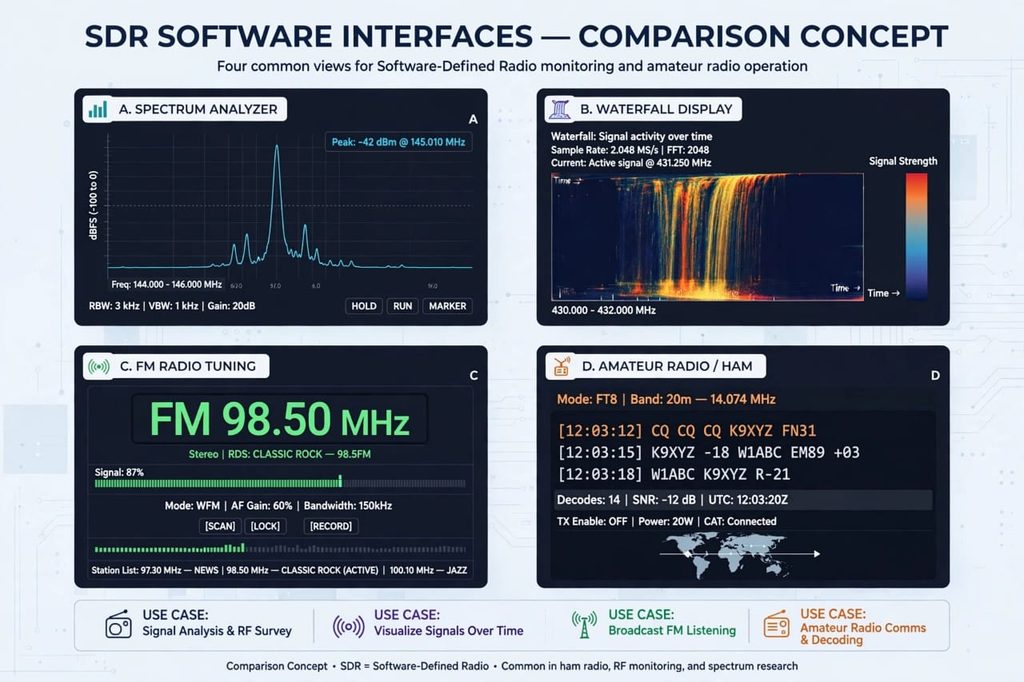
- Open SDR++
- On the left side, you will see Source. Click on it
- In Source, select RTL-SDR from the list
- Click on Refresh, your dongle should appear
- Click on Start or the Play button at the top
You should now see a moving waterfall display. Those colorful lines are real radio signals in your area. If the waterfall is moving, congratulations, your setup is working!
If you see “No device found”, go back to Step 2 and reinstall the Zadig driver. That is the most common fix.
Step 5: Tune to Your First FM Radio Station
This is the most exciting part. Let’s listen to your first station.
- In SDR++, find the Frequency box at the top
- Type your local FM station frequency, for example 98.5 MHz or 101.0 MHz. If you don’t know, try 98.5, 100.5, or 102.0
- Change the Mode to WFM (Wide FM). This is very important for FM radio
- Set Bandwidth to 200 kHz
- Increase the Volume slider
- Slowly adjust the Gain. Start with 25 dB and increase if the signal is weak
You should now hear music or a radio host talking. If the sound is noisy, try moving your antenna near the window or extending it to about 75 cm long.
My first station was a local FM station playing old songs. I was so happy that I called my brother to listen to it. That feeling is still special for me.
Step 6: Try Air Traffic Control and Ham Radio
Once FM is working, you can try more exciting things.
For Air Traffic Control:
Tune to 118.000 to 136.000 MHz and set Mode to AM. If you live near an airport, you will hear pilots talking to the tower. The best time is morning and evening when flights are busy.
For Ham Radio:
Tune to 14.074 MHz for FT8 digital mode, or 7.100 MHz for SSB voice. Set Mode to USB or LSB. You might hear ham operators from different countries, especially in the evening.
For Walkie-Talkies:
Tune to 446.000 MHz and set Mode to NFM. You will often hear local shops or security guards.
Remember, listening is legal in most countries, but you should never share private conversations you hear. Just enjoy listening for learning.
Best Settings for RTL-SDR on Windows
After testing many settings, here are the best settings I recommend for beginners:
For FM Radio:
- Mode: WFM
- Bandwidth: 200 kHz
- Gain: 25 to 35 dB
- Antenna Length: 75 cm
For Air Traffic:
- Mode: AM
- Bandwidth: 8 kHz
- Gain: 35 to 40 dB
- Antenna Length: 55 cm
For Ham Radio (SSB):
- Mode: USB / LSB
- Bandwidth: 2.7 kHz
- Gain: 30 dB
- Antenna Length: 10 to 20 meters wire if possible
Don’t set gain to maximum. Too much gain creates more noise and makes signals worse. I always keep my gain between 25 and 35 dB.
Troubleshooting: Common RTL-SDR Setup Problems
Even after following all steps, sometimes things go wrong. Here are the most common problems and their fixes.
Problem 1: SDR++ Says No Device Found
Solution: This is 99% a Zadig driver problem. Reinstall Zadig, make sure you select Bulk-In, Interface 0, and restart your computer.
Problem 2: Waterfall is Moving But No Sound
Solution: Check your Mode. For FM, it must be WFM, not AM or SSB. Also check your volume and check if your speakers are muted.
Problem 3: Only Noise, No Stations
Solution: Your antenna is the problem. Move it near a window, or outside if possible. Extend the antenna fully. Try a different frequency.
Problem 4: Computer is Very Slow
Solution: Reduce the sample rate in SDR++ to 2.048 MSPS. Close other heavy apps like Chrome. SDR uses a lot of CPU.
Problem 5: Dongle Gets Very Hot
Solution: This is normal. RTL-SDR dongles get warm. But if it is too hot to touch, unplug it for 5 minutes and use a USB extension cable to keep it away from your laptop.
Tips to Get Better Reception
If you want to hear more stations, try these simple tips that I learned from experience:
1. Use a Better Antenna: The small antenna that comes in the box is okay for FM, but for ham radio and air traffic, a simple outdoor antenna works 10 times better. Even a long wire hanging from your window can help a lot.
2. Use a USB Extension Cable: Keep your dongle away from your laptop. Laptops create a lot of electrical noise that kills weak signals.
3. Try Different Times: Radio signals change with time. In the evening, you will hear more ham radio and shortwave stations. In the morning, air traffic is more active.
4. Update Your Software: Always use the latest version of SDR++. Old versions have bugs.
5. Join a Community: Join RTL-SDR groups on Facebook and Reddit. People there are very helpful and will share frequencies for your area.
Frequently Asked Questions (FAQs)
How long does it take to setup RTL-SDR on Windows?
If you follow this guide, it takes only 10 minutes. 2 minutes for Zadig driver, 2 minutes for SDR++ download, and 6 minutes for tuning and testing.
Do I need internet to use RTL-SDR?
You need internet only to download Zadig and SDR++. After that, you can use RTL-SDR completely offline.
Why is my RTL-SDR not detected on Windows 11?
Windows 11 installs the wrong driver automatically. You need to use Zadig to replace it with WinUSB driver. That fixes 99% of detection problems.
Can I use RTL-SDR on Windows without Zadig?
No, on Windows you must install the Zadig driver. On Linux and Mac, you don’t need Zadig.
What is the best software for RTL-SDR on Windows?
SDR++ and SDR# are the best software for RTL-SDR on Windows. SDR++ is more modern and lightweight, while SDR# has more plugins. For beginners, I recommend SDR++.
Is RTL-SDR legal?
Yes, listening to radio signals is legal in most countries. However, transmitting without a license or listening to encrypted police channels may be illegal in your area. Always check your local laws.
Final Thoughts: What to Do Next?
Congratulations! You have now successfully setup your RTL-SDR on Windows.
You have done what most people give up on. You installed the driver, you installed the software, and you heard your first real radio signal. That is a big achievement.
Now don’t stop here. This is just the beginning.
Tomorrow, try to track airplanes with ADS-B. Next week, try to decode weather satellites. Next month, you might even want to get your ham radio license.
If this guide helped you, please leave a comment and tell me what was the first station you heard. Was it FM radio, air traffic, or ham radio? I read every comment and I love hearing your stories.
And if you want to learn more about different software options, check out our guide on the Best SDR Software for Beginners.
Happy listening!
Author Note: This guide was last updated in October 2026 and tested on Windows 11 with RTL-SDR Blog V4 dongle and SDR++.