
| VBox Software Oracle VirtualBox Features, Uses, Safety & Latest Version Guide |
A practical, research-based guide for beginners, students, developers and IT learners
If you searched for “VBox software,” you are almost certainly looking for Oracle VirtualBox. It is desktop virtualization software that lets you create a virtual computer inside your existing computer. That virtual machine, or VM, can run its own operating system while your normal Windows, Linux or macOS setup continues to run as the host.
As of August 2026, Oracle’s download repository includes VirtualBox 7.2.16. You can verify the current files on the official VirtualBox 7.2.16 download repository. Because virtualization software receives maintenance and security fixes, using a current supported build is a sensible starting point.
Quick Facts About VBox Software
| Official name | Oracle VirtualBox |
| Software type | Hosted desktop hypervisor / virtualization software |
| Current 7.2 build checked | 7.2.16 (August 2026) |
| Typical host systems | Windows, macOS, Linux and Solaris packages are available |
| Common guest systems | Windows, Linux and other supported operating systems |
| Main uses | Testing, development, IT labs, learning and compatibility work |
| License note | Base package is open-source under GPLv3; Extension Pack uses separate terms |
What Is VBox Software?
VBox is a common shorthand for VirtualBox. The program is a hosted, or Type 2, hypervisor. In simple terms, it runs on top of the operating system already installed on your computer and creates virtual hardware for a guest operating system.
For example, you can keep Windows as your main system and run Ubuntu in a VirtualBox window. The Ubuntu VM receives virtual CPU cores, RAM, storage, graphics, networking and other devices that are provided through VirtualBox rather than through a separate physical PC.
This setup is useful when you want separation and flexibility without buying another computer or replacing your main operating system.
What Can You Do With VirtualBox?
Run a second operating system
You can explore Linux while keeping Windows, test Windows in a virtual environment on a supported host, or maintain separate guest systems for different projects.
Build software test environments
Developers can create VMs with different operating systems, libraries and application versions, then test software without constantly changing the host computer.
Learn Linux and system administration
Students can practice terminals, package management, networking, permissions and server setup without immediately installing Linux directly on their computer.
Create a small IT lab
Several VMs can run on one capable computer, which makes it possible to practice client/server setups, network services and system administration concepts.
Keep older software separate
A VM can sometimes provide a controlled environment for software that depends on an older supported guest operating system. Compatibility still varies, so it should be tested rather than assumed.
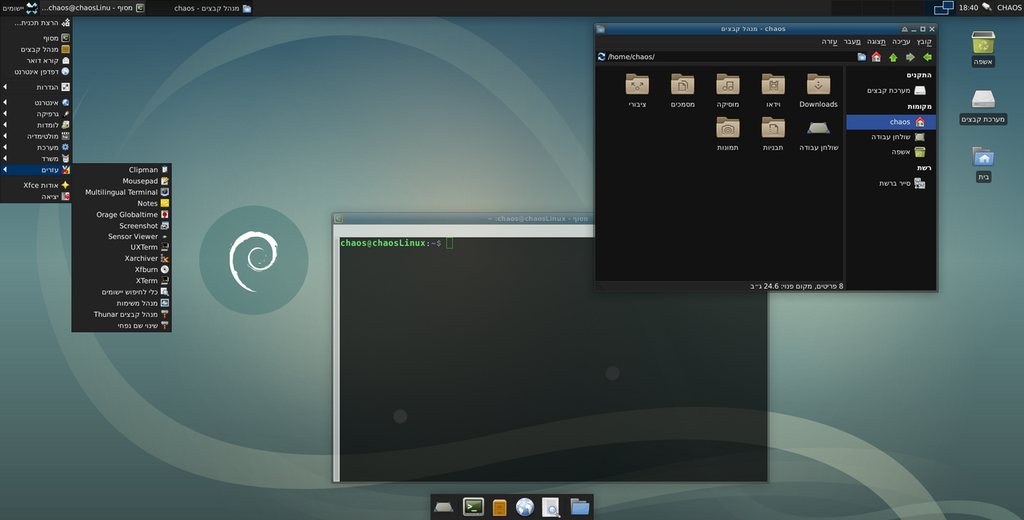
Example of a Debian Linux desktop used as a VirtualBox guest environment. Image: Wikimedia Commons (GPL-licensed screenshot).
How VBox Software Works
VirtualBox creates a software-defined computer. When you create a VM, you decide how much of the host computer’s resources it can use. The guest operating system then sees those assigned resources as its own hardware.
- Virtual CPUs taken from the processing capacity of the host
- Virtual RAM allocated from the host computer’s physical memory
- A virtual disk file stored on the host drive
- Virtual network adapters for internet or lab networking
- Virtual graphics and display hardware
- ISO images that can act like installation DVDs
- Optional USB, shared folder and clipboard integration
The biggest practical rule is that a VM does not create free resources. If your computer has limited RAM or CPU capacity, assigning too much to a virtual machine can make both the host and the guest feel slow.
Important VirtualBox Features
Snapshots
A snapshot records the state of a virtual machine so you can return to an earlier point. This is especially useful before installing software, changing system settings or performing experiments. Snapshots are convenient, but they should not replace a proper backup of important files.
Guest Additions
Guest Additions are drivers and helper applications installed inside supported guest systems. They improve integration and can add features such as better display behavior, pointer integration and shared folders. Oracle explains these features in its Guest Additions documentation.
Shared Folders
Shared folders make selected host folders available inside a guest VM. This is useful for exchanging files, but it also reduces isolation. If the guest does not need write access to host files, a read-only share can be the safer choice.
Shared Clipboard
Clipboard sharing can move copied content between the host and guest. It is convenient for routine work, but you do not need to leave bidirectional sharing enabled all the time. For more isolated test environments, keep unnecessary integration features off.
Virtual Networking
VirtualBox can give a VM internet access or place several VMs into a controlled virtual network. Different network modes are useful for different goals, such as ordinary web access, communication with the host, or an isolated practice lab.
VirtualBox 7.2.16: What the Current Release Means
The 7.2 series is the current major generation in Oracle’s repository at the time of this article. The 7.2.16 build was posted in August 2026 with installers for Windows, macOS on Intel and Apple Silicon, multiple Linux distributions, Solaris-related files, Guest Additions and the Extension Pack.
For everyday users, the most important takeaway is not a single feature name. It is that VirtualBox is still actively maintained. That matters because compatibility changes, operating-system updates and security issues can make old virtualization builds less reliable over time.
Is VBox Software Free?
The VirtualBox base package is open-source software distributed under GPLv3. The Extension Pack is separate and has its own licensing terms. This distinction matters most in business or organizational use, where licensing should be reviewed instead of assuming every VirtualBox component has identical terms.
VirtualBox Extension Pack vs Guest Additions
| Component | Where it is installed | Why it matters |
| Guest Additions | Inside a guest VM | Improves integration, display behavior and supported sharing features |
| Extension Pack | On the host alongside VirtualBox | Adds extra capabilities and has separate licensing terms |
What Computers Can Run VirtualBox?
Oracle’s current 7.2 documentation supports 64-bit host combinations across Windows, Windows Server, Linux, macOS on compatible hardware and Oracle Solaris, with Arm64 support available for selected host and guest combinations. The exact combination matters, so users should check the current documentation for the host architecture they are using.
Hardware resources also matter. A lightweight Linux VM may run comfortably on modest hardware, while several Windows or server VMs can require much more memory, CPU capacity and storage.
Practical hardware considerations
- Enough RAM for both the host and the guest at the same time
- Multiple CPU cores if you plan to run heavier guest workloads
- SSD storage for noticeably better VM responsiveness
- Enough free disk space for virtual disks, snapshots and ISO files
- Hardware virtualization support enabled where required
How to Get Started With VBox Software
- Download the installer for your host operating system from an official Oracle or VirtualBox source.
- Install VirtualBox and restart the host if the installer requests it.
- Obtain legitimate installation media for the guest operating system you want to use.
- Create a new virtual machine and choose the appropriate guest OS type.
- Assign RAM, CPU cores and virtual disk space without starving the host system.
- Attach the operating-system ISO and start the VM.
- Complete the guest OS installation.
- Install Guest Additions if your guest supports them and you need tighter host/guest integration.
Is VirtualBox Safe?
VirtualBox is established virtualization software, but a VM should not be treated as a perfect security shield. The virtualization layer itself is complex software, and it can receive security updates just like an operating system or browser.
Keep VirtualBox updated: Use a maintained release when practical, especially after security and compatibility updates.
Use official installers: Unofficial download sites may repackage installers or offer outdated builds. Prefer the software publisher’s own sources.
Limit integration when you need isolation: Shared folders, USB access and bidirectional clipboard features are useful, but they connect the guest more closely to the host.
Back up important files: Snapshots can help with experiments, but they are not a substitute for a real backup strategy.
Advantages and Limitations
| Advantages | Limitations |
| • Useful for learning and testing | • Consumes host RAM, CPU and storage |
| • Runs several OS environments on one computer | • 3D/GPU-heavy workloads may be limited |
| • Snapshots and VM cloning are convenient | • Some host/guest combinations have limited support |
| • Good for development and lab work | • Advanced networking can take time to learn |
| • Cross-platform host support | • Integration features reduce isolation when enabled |
VirtualBox vs Other Virtualization Options
VirtualBox is not the only virtualization platform. VMware desktop products, Microsoft Hyper-V, QEMU/KVM and Parallels Desktop all serve overlapping but different needs. VirtualBox is especially attractive for general desktop virtualization, learning, testing and cross-platform labs. A different platform may be better when you need enterprise management, tighter macOS integration, specialized Linux performance or advanced GPU workloads.
Who Should Use VBox Software?
Students: A convenient way to learn Linux, networking and operating-system concepts without replacing the main OS.
Developers: Useful for reproducible test environments and separating project-specific tools.
IT learners: Helpful for building small labs with several virtual machines on one physical system.
Software testers: Makes it easier to test applications in multiple operating-system environments.
Curious PC users: A low-commitment way to explore another OS before considering a full installation.
Is VBox Software Worth Using in 2026?
For desktop labs, development, operating-system testing and learning, VirtualBox remains a practical choice in 2026. Its biggest strengths are broad platform support, an approachable graphical interface, useful snapshot and sharing features, and the fact that the base package remains open source.
It is not the perfect tool for every workload. Users who need high-end GPU virtualization, large production clusters or deep enterprise integration may prefer another platform. But if your goal is to run a few VMs on a desktop or laptop, VBox software still provides a strong balance of capability and accessibility.
Frequently Asked Questions
What does VBox software mean?
VBox usually means Oracle VirtualBox, a virtualization program used to create and run virtual machines.
Is VBox the same as VirtualBox?
Yes in most search and technical contexts. VBox is common shorthand for VirtualBox and also appears in names such as VBoxManage.
What is the current VirtualBox version?
The Oracle repository checked for this article includes VirtualBox 7.2.16, posted in August 2026.
Can VirtualBox run Windows?
Yes, supported Windows versions can run as guests on compatible host and hardware combinations. You still need legitimate installation media and any required license.
Can VirtualBox run Linux?
Yes. Linux is one of the most common guest operating systems used with VirtualBox.
Can I run more than one VM at a time?
Yes, as long as the host has enough RAM, CPU capacity and storage for the combined workload.
Are snapshots backups?
Not really. Snapshots are excellent for reverting a VM state, but important data should still be backed up separately.
Is VirtualBox good for beginners?
Usually yes. The graphical manager makes basic VM creation approachable, while command-line tools are available for advanced users.
If you want to learn about AI avatars, check our detailed guide on Wolf 3D Software. Also explore HeyGen AI Explained for modern avatar tools.
Final Verdict
VBox software, better known as Oracle VirtualBox, is still one of the easiest ways to create virtual computers on a personal computer. It is well suited to learning, development, software testing and small IT labs. The current 7.2 generation shows that the platform continues to be maintained, while familiar features such as snapshots, Guest Additions, shared folders and virtual networking make it useful for both beginners and experienced users.
For the best experience, start with a current official build, give each VM realistic resources, keep unnecessary sharing features disabled when isolation matters, and maintain proper backups of anything important.